UniOffice guide: local files, AI and workspace
Use this guide to open a document in UniOffice, choose where to save it and review AI output before sharing. UniOffice has six editor groups: Docs, Sheets, Slides, PDF, HTML and Markdown. The steps distinguish Office on the web, local files and documents in a UniWork workspace.
Which formats does Office on the web support?
The web editors correspond to DOCX, XLSX, PPTX, PDF, HTML and Markdown. Available actions depend on your access, your organization’s configuration and the editor being available.
Opening a format does not promise full compatibility with every file, macro, embedded object or layout from another application. XLS, ODT and other formats do not automatically belong to the six web editor groups above.
| Editor | Format | Actions when permitted |
|---|---|---|
| Docs | .docx | Save, save as and print; export PDF |
| Sheets | .xlsx | Save, save as and print |
| Slides | .pptx | Save, save as and print; export PDF |
| Save, save as and print | ||
| HTML | .html | Save, save as and print; export HTML |
| Markdown | .md | Save, save as and print; export HTML |
Choose an available trial installer
Open the UniOffice page and choose a published installer for your operating system. Download choices and versions depend on the release catalogue currently available there.
Review the release requirements before installing. Trial availability does not imply support for every format or document operation.
Understand where the file is stored
A local file stays on your computer. A document saved to a workspace belongs to the team's UniWork workspace, where access and sharing controls apply.
Choose the location that suits your collaboration needs. Check the recipients and the document's access scope before sharing.
Opening a local file does not mean it has been saved or automatically synced to a workspace. Check the save action, version and recipients before collaborating.
- Identify whether the open file is local or in a workspace.
- Check the save location before writing changes.
- Check access before sharing the document.
Walkthrough: review a DOCX document with AI
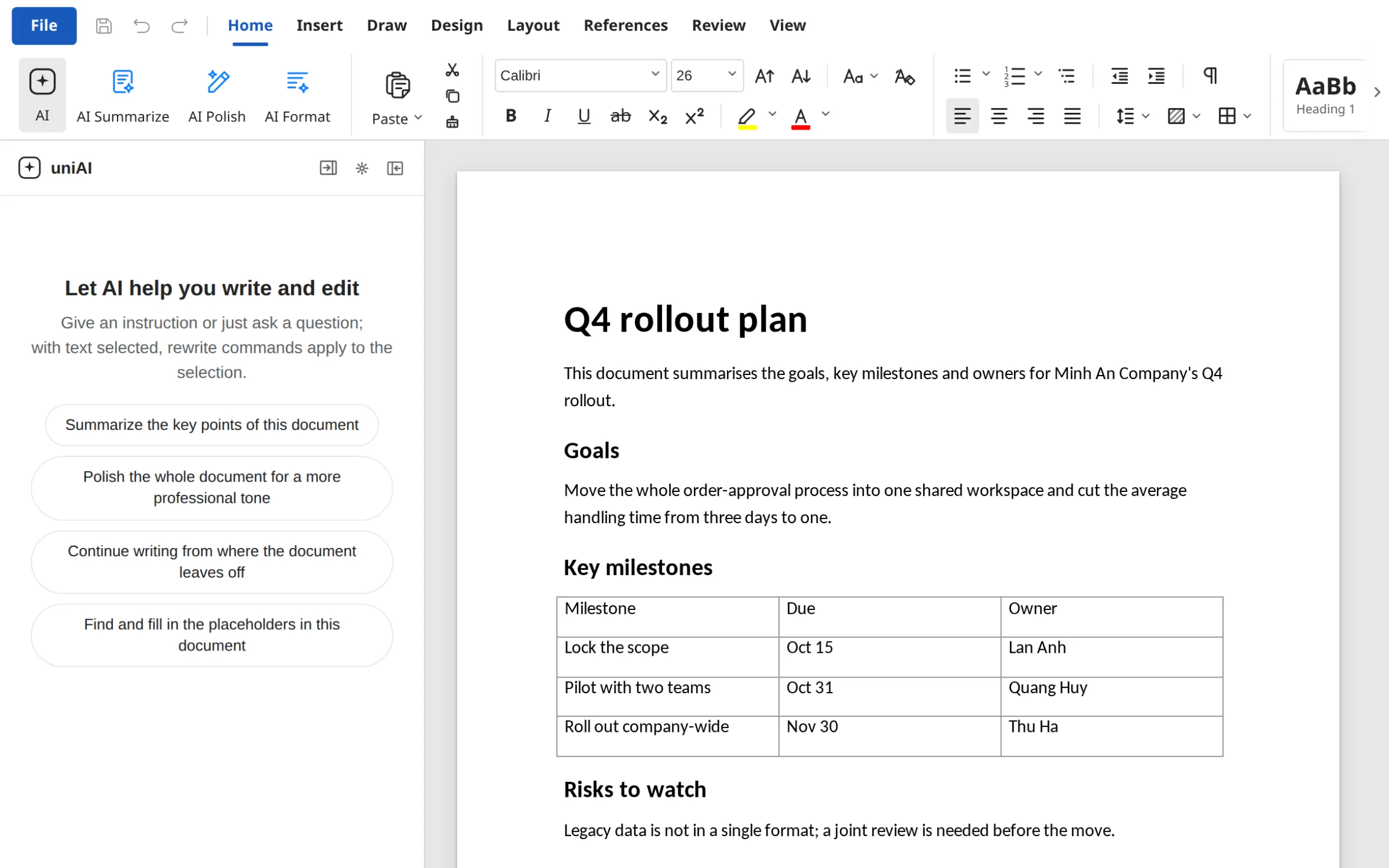
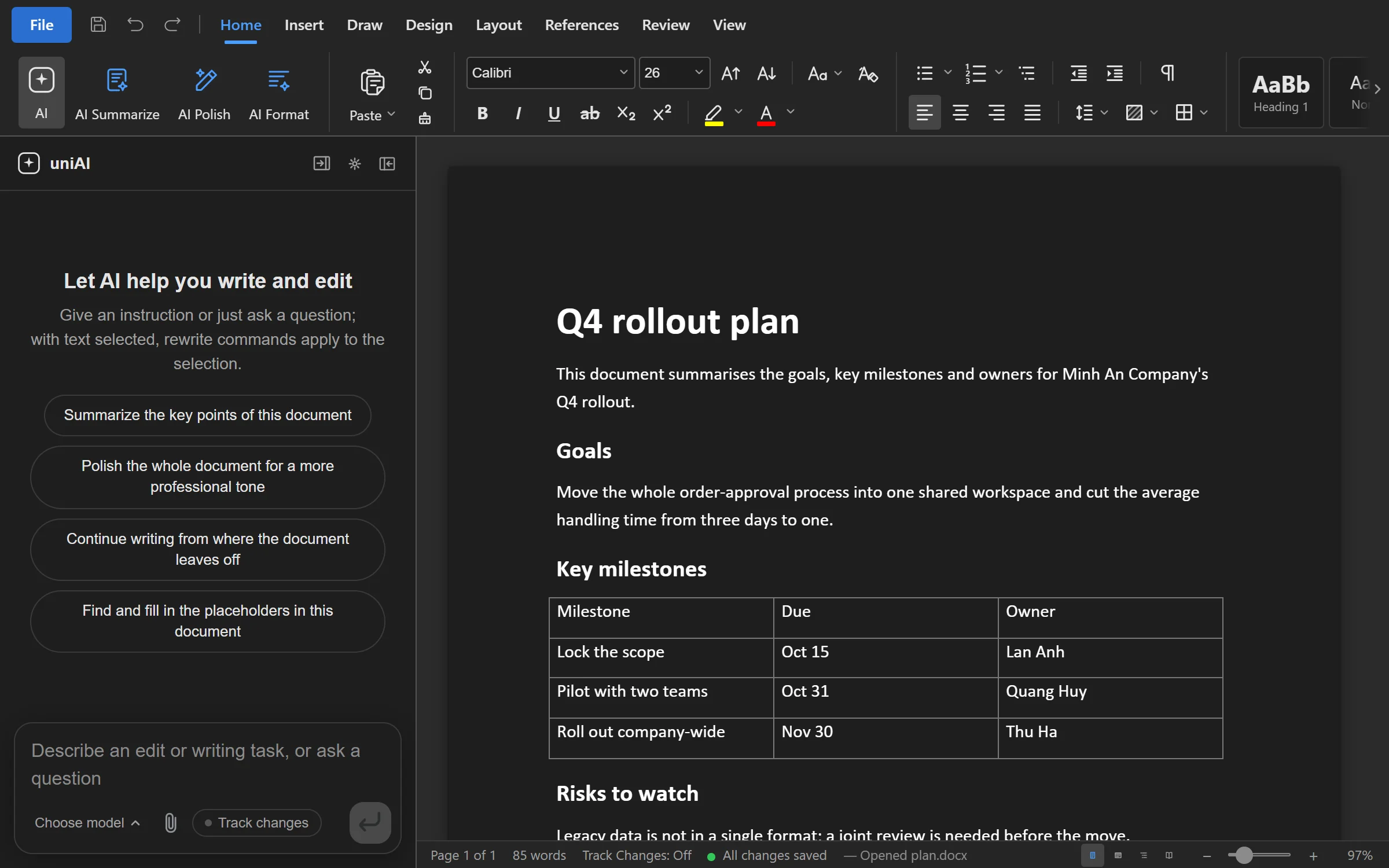
Use a copy of a DOCX document you are allowed to process. This walkthrough is for Docs on the web when your organization has enabled the editor and AI; the steps do not automatically create or share a document with other people.
- Open the document from the correct workspace and confirm you have editing access.
- Read the original and identify what you want summarized or rewritten before sending an AI request.
- If AI is available, enter a specific goal such as the example below. Leave out content your organization does not permit AI to process.
- Compare the result with the original; check figures, dates, names and anything AI may have omitted.
- Save using an action your access permits, reopen the document to verify it, then share with the intended recipients.
Know when a connection is needed
Workspace documents, sign-in and cloud AI need connectivity. For offline work, check the available Office desktop release and its supported formats first.
Do not assume that AI runs entirely on your computer or that every operation processes data in the same place. Confirm provider configuration and your organization's data requirements before using sensitive content.
If a file will not open, save or use AI
If a file will not open, check its format against the table above and try a small copy without sensitive data. Renaming a file extension does not convert its contents to another format.
If save or export is missing, check your access and the actions the editor supports. View-only access does not permit editing; do not move a document to another workspace to try to bypass its access rules.
If AI is unavailable, check connectivity, permissions and your plan with an administrator; the plan's AI credits may have run out.
When reporting an issue, record the editor, file format, action and error message. Do not put API keys or complete internal documents in a public screenshot.
Review AI results before saving
Describe the goal and the content you want processed. Review the result, including figures, formulas, formatting and consequential details, before saving or sharing it.
Keep an original or an appropriate version when changing an important document. Review remains necessary before relying on the output.
- Test a copy of a sample file you are allowed to use.
- Review content, formulas, tables and layout.
- Save, close and reopen the file to check the result.
- Check the workspace, version and recipients before sharing.